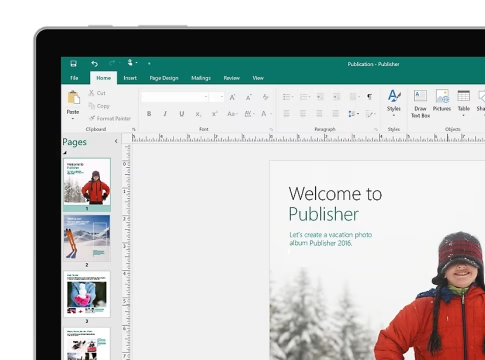
Microsoft Publisher stands out as a desktop publishing application designed to empower you in creating professional-looking marketing materials, flyers, brochures, newsletters, and a whole lot more. Unlike its text-centric cousin, Microsoft Word, Publisher prioritizes visual elements and page layout, making it the go-to tool for projects where design reigns supreme.
Standing Out from the Crowd
In the realm of design programs, what makes Publisher such a compelling choice? Here’s a breakdown of its strengths:
- Effortless Interface: Publisher boasts a user-friendly interface that prioritizes ease of use. With drag-and-drop functionality and a vast library of pre-designed templates, even beginners can create polished publications without years of graphic design experience. No need to be a design guru to craft impressive flyers or newsletters!
- Seamless Workflow: Integration with other members of the Microsoft Office family is a major advantage. Publisher seamlessly imports text and images from Word or Excel, streamlining your workflow and saving you precious time. Imagine crafting a newsletter where you can effortlessly incorporate text from a Word document and high-impact charts from Excel – that’s the power of Publisher’s integration.
- Cost-Effective Choice: Affordability is another perk. Publisher is included in some higher-tier Microsoft 365 subscriptions, making it a budget-friendly option for individuals or small businesses who don’t require the advanced features of pricier design software.
A Look at the Other Side of the Coin
While Publisher offers a plethora of advantages, it’s important to acknowledge its limitations:
- Limited Design Flexibility: While Publisher provides a good range of templates and design tools, it can’t compete with the extensive customization options found in professional design software like Adobe InDesign. If you require a high degree of design freedom for complex projects, Publisher might not be the most suitable choice.
- PC-Only Platform: Currently, Publisher is only available for Windows PCs. There’s no Mac or mobile version, limiting its accessibility for users who work on those platforms.
- Nearing Retirement: A recent announcement from Microsoft in February 2024 revealed that Publisher will be discontinued in October 2026. While existing users can continue using Publisher after that date, it’s important to consider this if you’re looking for a design solution with long-term viability.
Unleashing Your Creativity with Publisher
If you’re interested in exploring Microsoft Publisher, here are some helpful resources to get you started:
- Microsoft’s official Publisher download page offers information on system requirements and how to get started with the program: [Microsoft Publisher download ON microsoft.com]
- Feeling like a complete beginner? A quick [YouTube search for Microsoft Publisher tutorial] can provide a visual guide to the program’s functionalities and get you up and running in no time.
- Microsoft’s support website offers a variety of helpful articles on specific tasks within Publisher, ensuring you get the most out of the program: https://support.microsoft.com/en-us/publisher
Whether you’re a small business owner crafting marketing materials, a student creating a club newsletter, or someone who simply wants to design eye-catching invitations, Microsoft Publisher can be a valuable asset in your design toolbox. By carefully considering its strengths and limitations, you can make an informed decision about whether Publisher is the perfect fit for your design needs.
Microsoft Publisher stands out as a desktop publishing application designed to empower you in creating professional-looking marketing materials, flyers, brochures, newsletters, and a whole lot more. Unlike its text-centric cousin, Microsoft Word, Publisher prioritizes visual elements and page layout, making it the go-to tool for projects where design reigns supreme.
Standing Out from the Crowd
In the realm of design programs, what makes Publisher such a compelling choice? Here’s a breakdown of its strengths:
- Effortless Interface: Publisher boasts a user-friendly interface that prioritizes ease of use. With drag-and-drop functionality and a vast library of pre-designed templates, even beginners can create polished publications without years of graphic design experience. No need to be a design guru to craft impressive flyers or newsletters!
- Seamless Workflow: Integration with other members of the Microsoft Office family is a major advantage. Publisher seamlessly imports text and images from Word or Excel, streamlining your workflow and saving you precious time. Imagine crafting a newsletter where you can effortlessly incorporate text from a Word document and high-impact charts from Excel – that’s the power of Publisher’s integration.
- Cost-Effective Choice: Affordability is another perk. Publisher is included in some higher-tier Microsoft 365 subscriptions, making it a budget-friendly option for individuals or small businesses who don’t require the advanced features of pricier design software.
A Look at the Other Side of the Coin
While Publisher offers a plethora of advantages, it’s important to acknowledge its limitations:
- Limited Design Flexibility: While Publisher provides a good range of templates and design tools, it can’t compete with the extensive customization options found in professional design software like Adobe InDesign. If you require a high degree of design freedom for complex projects, Publisher might not be the most suitable choice.
- PC-Only Platform: Currently, Publisher is only available for Windows PCs. There’s no Mac or mobile version, limiting its accessibility for users who work on those platforms.
- Nearing Retirement: A recent announcement from Microsoft in February 2024 revealed that Publisher will be discontinued in October 2026. While existing users can continue using Publisher after that date, it’s important to consider this if you’re looking for a design solution with long-term viability.
Unleashing Your Creativity with Publisher
If you’re interested in exploring Microsoft Publisher, here are some helpful resources to get you started:
- Microsoft’s official Publisher download page offers information on system requirements and how to get started with the program: [Microsoft Publisher download ON microsoft.com]
- Feeling like a complete beginner? A quick [YouTube search for Microsoft Publisher tutorial] can provide a visual guide to the program’s functionalities and get you up and running in no time.
- Microsoft’s support website offers a variety of helpful articles on specific tasks within Publisher, ensuring you get the most out of the program: https://support.microsoft.com/en-us/publisher
Whether you’re a small business owner crafting marketing materials, a student creating a club newsletter, or someone who simply wants to design eye-catching invitations, Microsoft Publisher can be a valuable asset in your design toolbox. By carefully considering its strengths and limitations, you can make an informed decision about whether Publisher is the perfect fit for your design needs.